
We use the internet to buy so many things: books, clothes, electronics, and even groceries and airplane tickets. Though some companies keep our information on file so that we don’t have to enter it for each purchase, many times we end up having to type our address or credit card number. Rather than typing these out each time, there’s an easier way. And, in Apple’s latest updates, it’s gotten even better.
AutoFill
With AutoFill, your iPhone, iPad, and Mac can automatically fill in your contact information, credit card details, and account and password. This makes purchasing on the web or in an app much faster.
Information you save with AutoFill is encrypted and synced across all your devices that are logged in with the same iCloud account, keeping it safe and secure. You are the only one who has access, and you decide when to share your information.
Setting up AutoFill
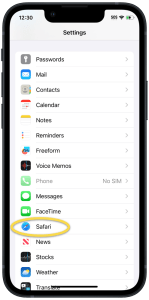
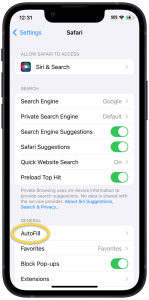
To set up AutoFill or to change your saved information, go to Settings, then tap Safari, and tap AutoFill:

Contact Info
To enable AutoFill for your contact information, turn on Use Contact Info, and then tap My Info and select your contact card:

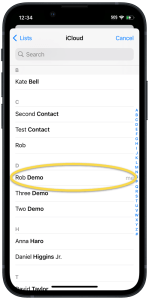
Note: if you don’t have a contact card already set up for yourself, go to the Contacts app, tap the + at the top, type in your information, then tap Done. Now, tap and hold on your new contact in the list and select Make This My Card.
Credit Cards
To enable AutoFill for your credit cards, turn on Credit Cards and then tap Saved Credit Cards. You will have to use Face ID, Touch ID, or enter your device’s passcode:

Tap on Add Credit Card and fill out the information, or tap Use Camera to quickly scan the card’s details:
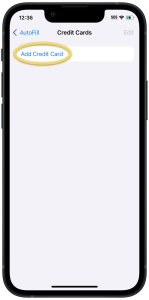
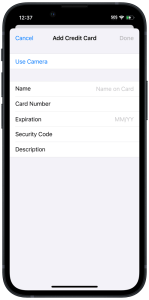
Hint: use the description field to give the card a short, memorable name.
Tap Done when you are finished.
Passwords
To turn on AutoFill for passwords, go to Settings and tap Passwords, then tap Password Options:

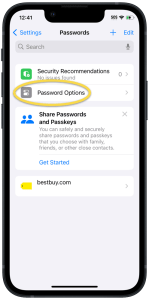
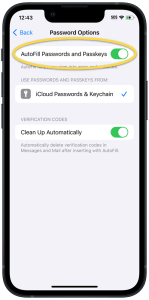
Turn on AutoFill Passwords and Passkeys:
Note: to learn more about creating and using strong passwords, see my article here.
Using AutoFill
Before diving in to how to use AutoFill, I want to give a word of caution. If you ever see Not Secure at the top of Safari, do not enter any information! This means the website is not properly secure, and your information could be intercepted.
Contact Information
When a website or app asks for your name, phone number, address, or email, you can use AutoFill to quickly enter this information. Tap into the text box on the page, and the keyboard will show an option to fill in the information being requested:
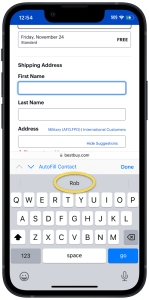
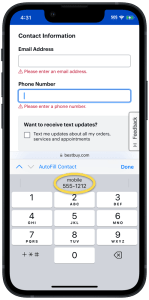
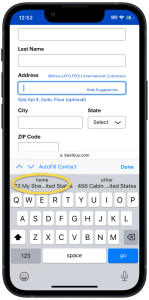
When there are several fields on the screen, AutoFill will fill in as much as it can. If you’d like to customize which pieces of information AutoFill will use, tap AutoFill Contact, then tap Customize… and choose what to fill in:

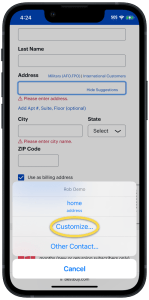

Tap AutoFill at the top right when you’re finished.
Use Someone Else’s Address
If you want to use a different contact’s information, for example, if you’re shipping a gift to them, tap AutoFill Contact as noted above, tap Other Contact…, and then choose the person from your contact list.
Credit Card
Using a credit card with AutoFill is very similar to filling in contact information. When on a webpage or app asking for a credit card number, tap into the credit card field. The keyboard will then offer to fill in your card information. Simply tap the card you want to use:
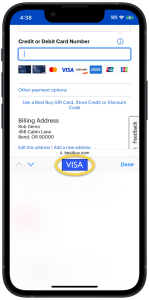
If you haven’t yet saved a credit card, you can tap Scan Card to use the camera to enter your credit card information. You will then be asked if you’d like to save that card for AutoFill.
Note: if you have many credit cards saved, you may need to swipe the list to the left to find the one you want to use.
Account and Password
When you are on a website or using an app for which you’ve saved login information, the keyboard will offer to fill this in for you. Just tap the account to fill in the username and password:
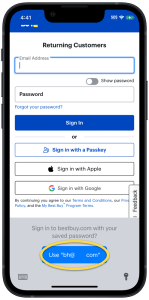
New: AutoFill Everywhere!
While most of the time, AutoFill will work as I’ve outlined above, there are times when a website or app doesn’t support AutoFill properly. There may also be cases where you just want to paste your information into an email or document. New in iOS 17, iPadOS 17, and macOS Sonoma, you can use AutoFill in any text field.
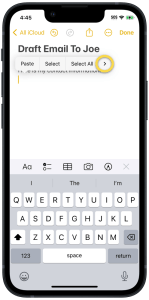
If you have tapped into a text field, but you don’t see AutoFill suggestions, tap and hold in the field (or, on a Mac or an iPad with a mouse, right click), and then choose AutoFill:
Note: you may have to tap on the right arrow to see the AutoFill menu item.
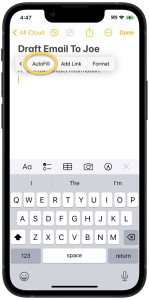
From this menu, select either Contact or Passwords and then select the item you’d like to use:
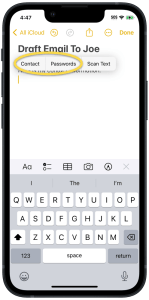
When you select a contact, tap on the information in the contact card that you want to insert. For passwords, select the account and then tap on the User Name or Password.
Less Typing, More Filling
AutoFill makes it quick and easy to fill in an address, credit card, or password, all without typing or digging out your credit card. Even better, the recent AutoFill Anywhere feature makes getting your information a snap.
I hope this post helps you save some time by using AutoFill on your devices.
Cover photo by engin akyurt on Unsplash

 Rob’s Tech Talk
I didn’t know about the new Autofill Anywhere. Will try it out. Thanks. 🤓
LikeLiked by 1 person
Could I change my ema
LikeLike
I can remove this email address from the list, and you can re-subscribe with a new email address if you’d like.
LikeLike